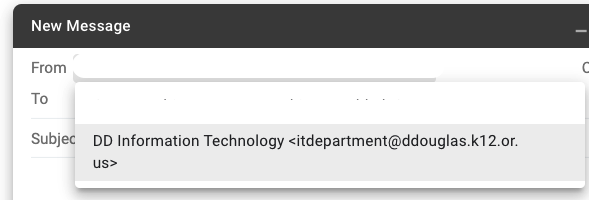
Users who wish to send an email representing a specific mail group can do so by following the steps below.
The user must be signed in and also a member of the group email.
Step 1: Add an address you own
- On your computer, open Gmail.
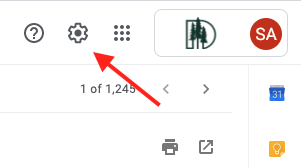
- In the top right, click Settings
Settings.

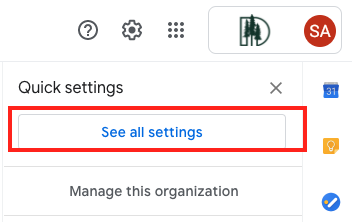
- Click the Accounts and import or Accounts tab.
- In the "Send mail as" section, click Add another email address.
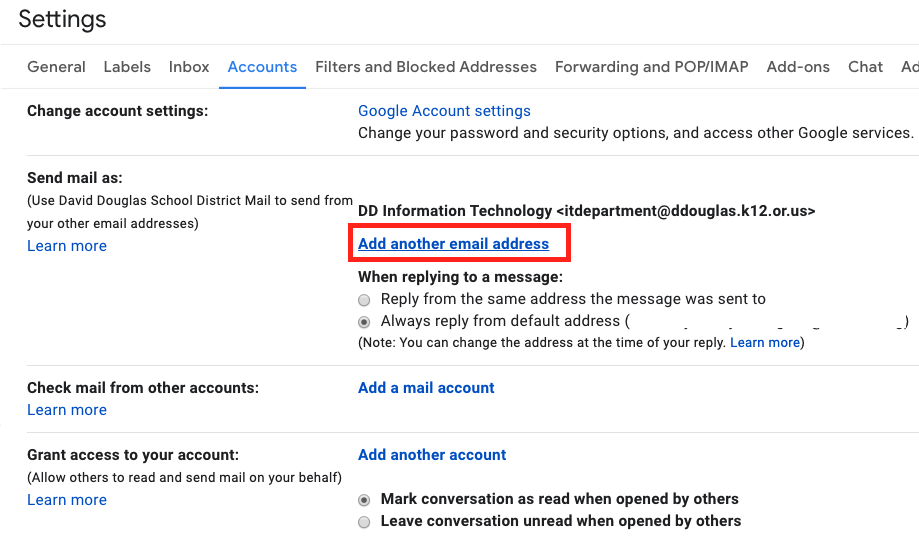
- Enter the name of the group and the group address you want to send from.
- Make sure to uncheck the "Treat as an alias" option.
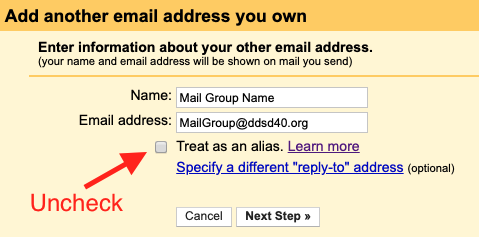
- Click Next Step
- Click Add Account.
Step 2: Confirm the address
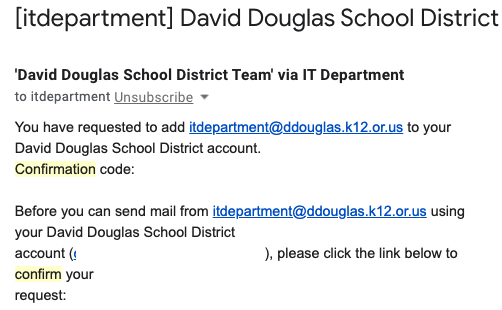
- Open the confirmation message you got from Gmail.
- Click the link.
Step 3: Change the "From" address
- In the message, click the "From" line.
(If you don't see this, click the space next to the recipient's email.) - Select the address to send from.