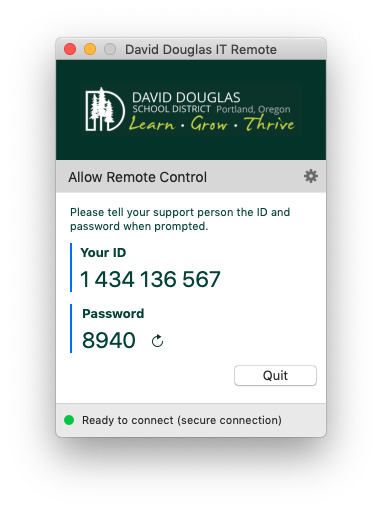
Sometimes our support technicians will need to remote on your device if you are working remotely.
Please follow the steps below to run the Team Viewer client for a remote session. A DDSD technician will send you a link to download and install the app.
Link to Download DDSD Teamviewer Client: https://get.teamviewer.com/ddsd40
When you receive the link your webpage will look like the following and the app will begin to download.

Users will see the following file download:
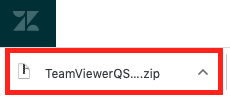
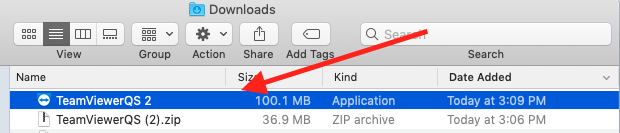
Select the file and it will automatically extract and show in the finder window. Then double click the app.
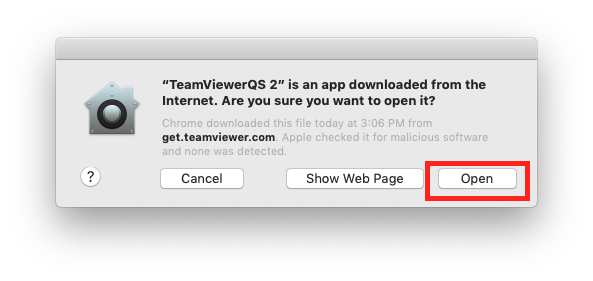
Users may see the following security pop-up. Select "Open"
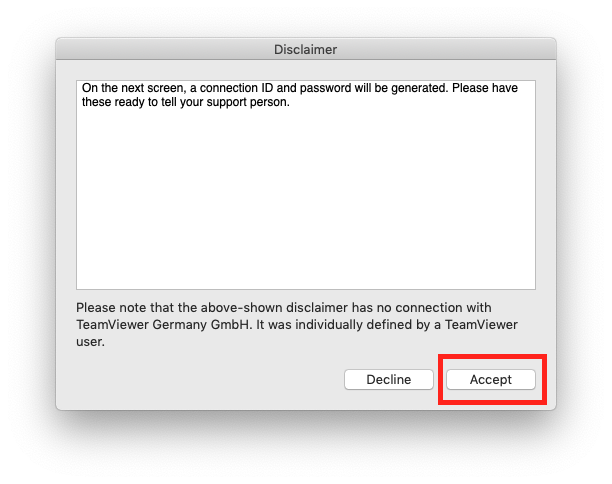
Once the app loads a disclaimer will show with instructions on having the ID and password ready for the support technician. Select "Accept"
The App will load and provide the needed ID and password. These are the numbers the support technician will need to connect to your computer.
Once everything is done you can select "Quit" and delete the app in your downloads folder.