- Open Acrobat Pro
- On a Windows based computer click on the Edit menu then choose Preferences
- On the left hand pane, click on Signatures
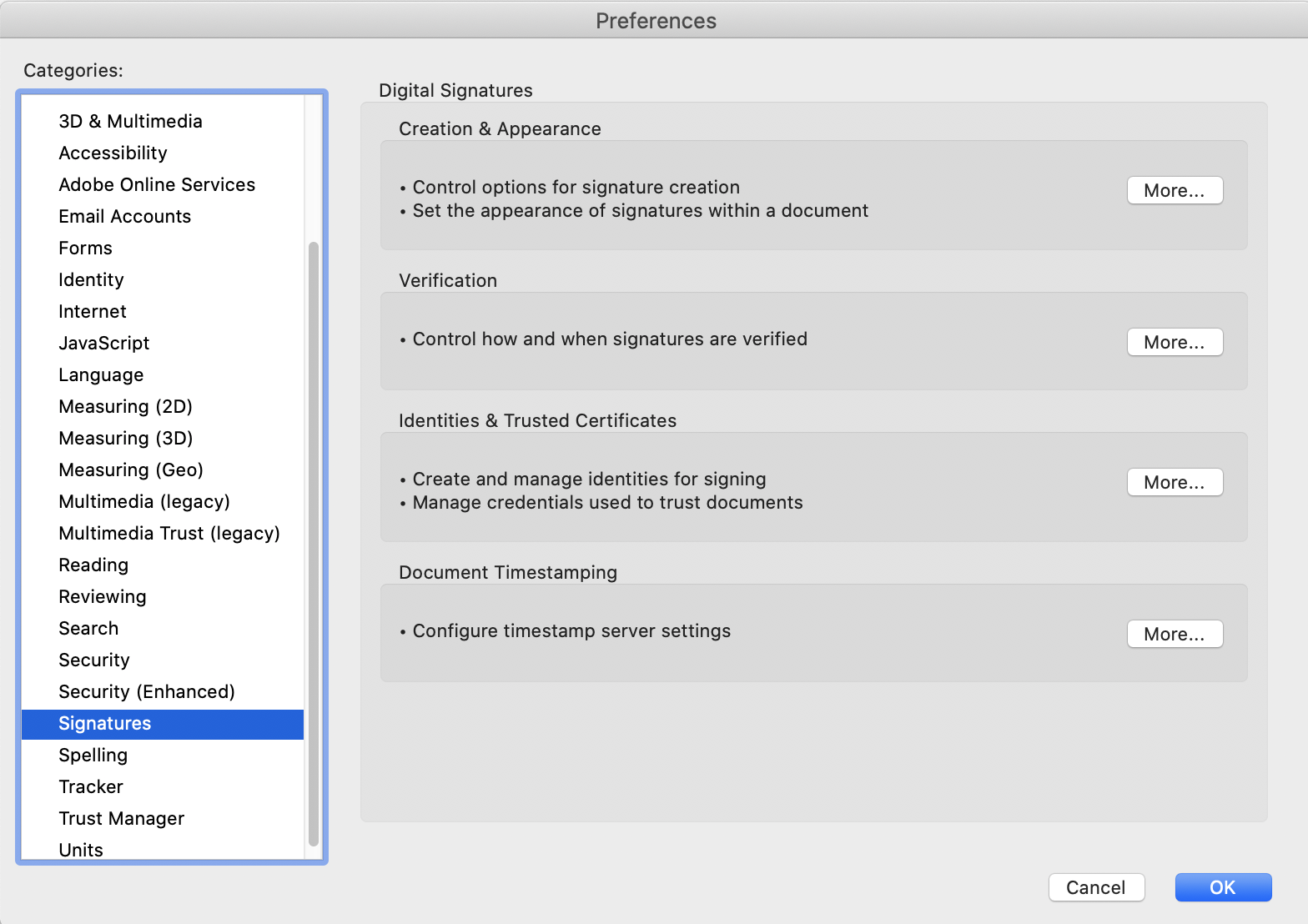
- On the right hand pane, click on the More... button in the Identity & Trusted Certificates category.
- In the new window click on the Add... button at the top left of the window.
- In the Add Digital ID window, Click on My existing digital ID from: -> A file, then click on Next.
- Click on Browse next to the File Name field, then navigate to where the signature file is located.
- In the password field, enter a password that you will remember. This password CANNOT be reset and is specific to the machine the signature is on.